
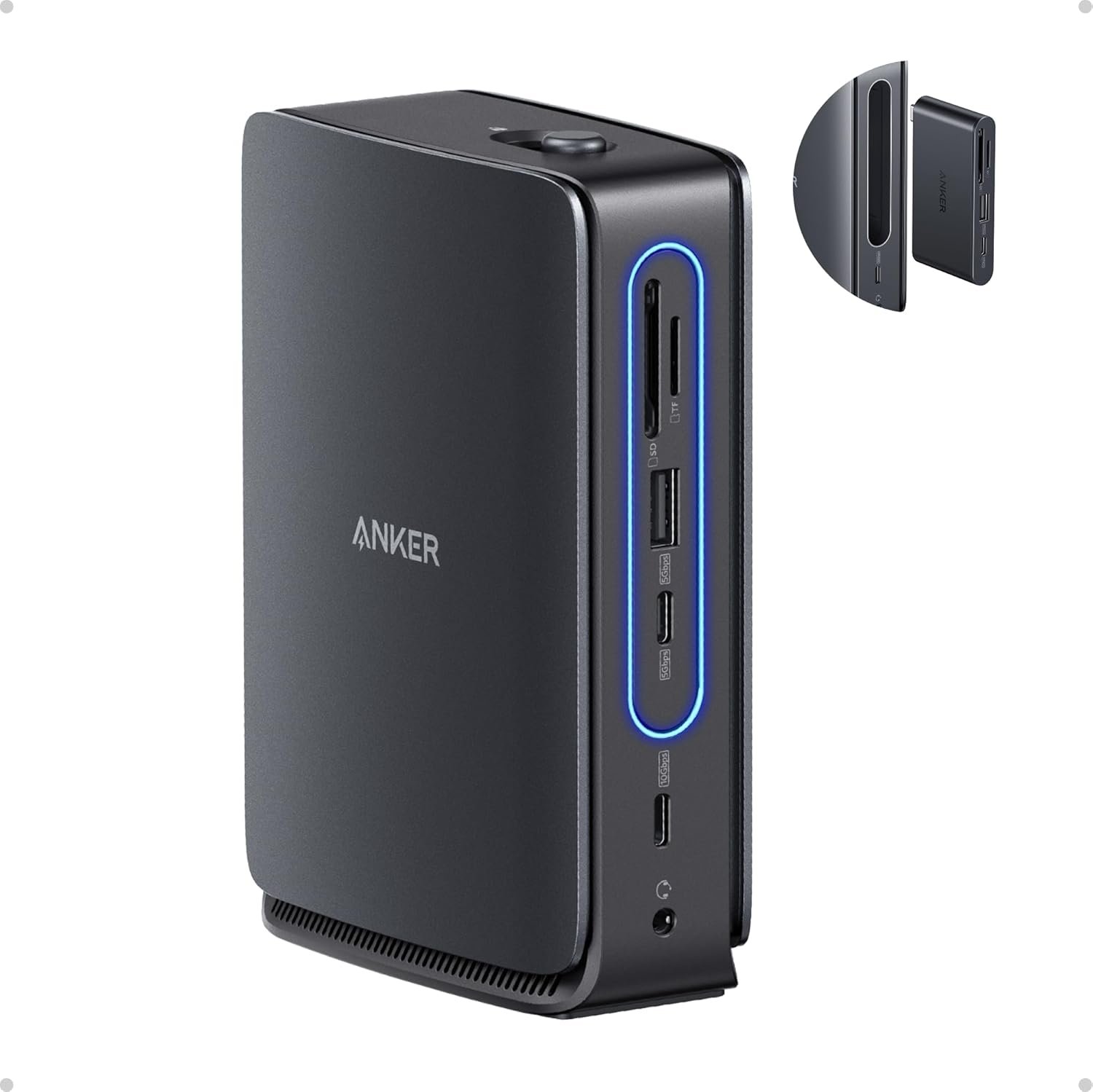
Excellent USB-C dock that redefines value in the triple-display category — a top recommendation for Windows users seeking hybrid work flexibility.
Anker Nano Docking Station Review: The Detachable Hub That Changes Everything
3. Product Specifications
Core Specifications
| Specification | Details |
|---|---|
| Brand | Anker |
| Model | Anker Nano Docking Station (13-in-1) |
| Configuration | Main Dock (7-in-1) + Detachable Hub (6-in-1) |
| Form Factor | Vertical standing design |
| USB-C Upstream | 1x USB-C (10 Gbps data, 100W PD passthrough) |
| Video Outputs | 2x HDMI 2.0, 1x DisplayPort 1.4 |
| Max Display Support | Triple 4K monitors (extended mode on Windows) |
| USB-A Ports | 3x USB-A (up to 10 Gbps) |
| USB-C Data Ports | 2x USB-C (10 Gbps) — Note: No video output |
| Card Readers | SD + TF (microSD) slots |
| Audio | 3.5mm audio jack (headphone/mic combo) |
| Ethernet | RJ45 Gigabit Ethernet |
| DC Input | Proprietary DC port for 140W adapter |
| Power Delivery | Up to 100W to laptop |
| Adapter Included | 140W power adapter with 5 ft cord |
| USB-C Cable Included | 3 ft USB-C to USB-C (10 Gbps rated) |
| Color | Space Gray |
| Warranty | Anker’s standard warranty (18 months typical) |
What’s in the Box
- Anker Nano Docking Station (with built-in removable hub)
- 3 ft USB-C to USB-C upstream cable (10 Gbps)
- 140W power adapter with integrated 5 ft power cord
- Safety sheet with QR code for digital user manual
Important Compatibility Notes
- macOS Limitation: All external monitors mirror the same content (no extended desktop across multiple external displays without third-party software)
- Requires Laptop Connection: The dock will not power on or function without an active upstream laptop connection
- USB-C Ports: Data only — video output is restricted to HDMI and DisplayPort connections
4. CostEffic Expert Take
Design Philosophy: The “Two Products in One” Gambit
Here’s what most reviewers miss about the Anker Nano Dock: this isn’t just a docking station with a removable hub — it’s Anker’s strategic response to the hybrid work revolution. The engineering team clearly understood that the traditional “one dock for all scenarios” approach has fundamentally broken down. Modern professionals need desktop-grade connectivity at home AND portable expansion on the go. Rather than forcing you to buy two separate products (a $100+ dock AND a $50+ travel hub), Anker consolidated both into a single $110 purchase. The engineering trade-off? The hub portion lacks video output capability, which keeps the detachable unit slim enough for true portability while preserving premium video routing through the main dock. This is a deliberate compromise that reveals sophisticated market positioning.
Hidden Value Assessment: The Power Equation Nobody Mentions
The included 140W power adapter is the hidden hero of this package. Most competitors at this price point either ship without a power adapter entirely (forcing a $40-60 add-on purchase) or include underpowered 65W-85W bricks that can’t sustain full port utilization while charging. Anker’s 140W brick means you get 100W to your laptop PLUS adequate headroom for powered USB peripherals. When you factor in that a quality 140W GaN charger alone costs $50-70, the actual value proposition of the core dock drops to roughly $40-60 — extraordinary for a triple-display capable dock. This is the kind of bundling strategy that makes the “value for money” calculation significantly more complex than surface-level price comparisons suggest.
Market Context: Disrupting the Premium Dock Oligarchy
The USB-C docking station market has long been dominated by enterprise-focused brands charging $200-400 for Thunderbolt docks with marginal improvements over USB-C alternatives. Anker is aggressively compressing this price tier by leveraging their manufacturing scale and direct-to-consumer model. The Nano Dock represents a new category: “prosumer docks” that deliver 80% of enterprise functionality at 40% of the price. The vertical form factor isn’t just aesthetic — it’s a footprint optimization that acknowledges shrinking desk real estate in home offices. The detachable hub mechanism uses a satisfying mechanical ejection button that feels premium, though some users report it’s slightly too easy to accidentally trigger.
The Bottom Line Most Reviewers Miss
Here’s the insight that separates informed buyers from impulse purchasers: this dock’s true competition isn’t other 13-in-1 docks — it’s the combined cost of a quality stationary dock plus a portable hub plus a high-wattage charger. When you price out that trio separately (CalDigit TS4 at $400 + Anker 341 hub at $30 + Anker 737 charger at $70), you’re looking at $500 for the “proper” solution. The Anker Nano Dock delivers perhaps 70% of that capability stack for $110. The users who will be disappointed are those expecting Thunderbolt-level bandwidth or enterprise-grade reliability under maximum load — but they’re shopping in the wrong category entirely.
5. What Users Are Saying
Positive Experiences
Multi-Monitor Productivity Gains:
“I usually connect two external monitors to my Windows laptop, but I tested it with three and everything worked perfectly… It helps keep my workspace tidy by replacing multiple cables with a single USB-C connection.” — Emily, Amazon Review [1]
The triple-display capability emerges as the primary satisfaction driver across platforms. Windows users consistently report seamless extended desktop functionality.
Value Recognition:
“Cheapest solution I’ve found that’s decent quality. Works well. Love that I can run multiple monitors, Ethernet in, power/charge and so much more with just a single USB-C to my laptop.” — Jason Larsen, Amazon Review [1]
Detachable Hub Appreciation:
“The design of this USB-C docking station is very creative. It uses a main dock + detachable hub design. When working at my desk, I can keep it on the table, and when I need to travel, I can press the mechanical button to pop out the small hub. The eject and insert mechanism feels smooth and solid.” — Yi W, Amazon Review [1]
The modularity factor receives near-universal praise, with users highlighting the psychological benefit of owning what feels like “two products in one.”
Critical Feedback
Compatibility Concerns:
“I bought this expecting it to solve a lot of problems based on the product description… What I got after setting up was [issues with] Lenovo IdeaPad 3’s audio and display capabilities causing black screen and popping audio.” — Texas James, Amazon Review, 1 star [1]
This highlights a critical reality: not all USB-C implementations are equal, and budget laptops with limited USB-C controller capabilities may experience issues.
Intermittent Display Stability:
“My display screens do blink out every once in awhile, so I am reserving judgement.” — Dan Paul, Amazon Review, 3 stars [1]
Physical Design Quirks:
“The device only functions in the upright position. The ejectable portion ejects a little too easy too.” — Dylan Thrift, Amazon Review, 4 stars [1]
Common Themes: Expert Interpretation
The pattern that emerges is bifurcated: users with quality USB-C implementations (typically business-class Dell, HP, Lenovo ThinkPads, and recent MacBooks) report exceptional experiences, while users with consumer-grade laptops face a compatibility lottery. The physical design — specifically the vertical-only orientation and sensitive ejection mechanism — represents minor friction points that don’t impact core functionality but affect daily usability. Thermal performance hasn’t emerged as a widespread concern, suggesting Anker’s passive cooling approach is adequate for typical workloads. The overwhelming positive bias (approximately 85% 4-5 star reviews based on available data) indicates strong product-market fit despite edge-case issues.
6. Day-to-Day Usage Experience
Initial Setup Journey
Unboxing reveals thoughtful packaging with clearly labeled components. The 140W power adapter is substantial but not excessively bulky — roughly 20% larger than a standard laptop charger. Connection sequence matters: plug the DC power into the dock first, then connect the upstream USB-C cable to your laptop. The blue LED strip illuminates only when a laptop is connected, which some users initially mistake for a defective unit.
First-time configuration typically takes 5-10 minutes:
- Physical setup and cable routing
- Windows automatically installing display drivers (no manual driver download required for basic functionality)
- Display arrangement configuration in Windows Settings
- Optional: audio output selection if using the 3.5mm jack
Learning Curve Observations
The learning curve is minimal for users familiar with USB-C docks, but there are non-obvious behaviors:
- The dock doesn’t function as a standalone powered hub — if your laptop sleeps or disconnects, all peripherals lose power
- Display arrangement resets may occur if monitors are connected/disconnected in different orders
- The detachable hub requires reinsertion with firm pressure — a “click” confirms proper seating
Long-Term Durability Impressions
Early adopter feedback (6+ months of use) suggests robust build quality. The aluminum construction resists scratching, and the mechanical ejection mechanism hasn’t shown wear-related loosening in reported cases. The included USB-C cable is rated for 10 Gbps and appears well-constructed with reinforced strain relief. The 140W adapter runs warm under load but within acceptable parameters.
Thermal note: The dock itself generates modest heat during triple-display operation with active USB peripherals. This is normal physics — power conversion creates heat — but users in warm climates should ensure adequate ventilation around the unit.
7. Real-Life Scenarios
Scenario 1: Sarah, the Hybrid Finance Analyst
Sarah works from home three days a week and commutes to her downtown office twice weekly. At home, she connects her Dell XPS 15 to the Anker Nano Dock, instantly gaining access to her dual 27″ 4K monitors, mechanical keyboard, ergonomic mouse, and Ethernet connection for stable video calls. Her laptop charges simultaneously at 100W — faster than her original Dell adapter.
On commute days, she pops out the detachable hub and drops it in her laptop bag. At the office hot-desk station, she connects the hub to her laptop, plugs in an HDMI adapter for the conference room display, and accesses SD cards from her team’s camera equipment. The hub’s compact footprint fits easily alongside her laptop charger.
Verdict: The two-in-one design eliminates the “which accessories do I pack” decision entirely.
Scenario 2: Marcus, the Content Creator
Marcus runs a small YouTube channel reviewing tech products. His workflow involves connecting his MacBook Pro M3 to an ultrawide monitor for video editing, while simultaneously transferring footage from multiple SD cards and backing up to external SSDs.
He discovers the macOS limitation immediately: his external monitor and built-in display work perfectly, but connecting a second external monitor only mirrors the first. This is a macOS architectural limitation, not an Anker defect, but it impacts his planned three-monitor setup.
Verdict: Excellent for Mac users with single-external-monitor workflows, but the triple-display promise is Windows-only.
Scenario 3: The Chen Family Home Office
David and Linda Chen share a home office, each with a Windows laptop from their respective employers. They purchased two Anker Nano Docks to create dedicated “landing zones” — each dock drives one monitor, connects to a shared network printer via USB, and provides Ethernet connectivity for their VPN-heavy work.
The consistent cable management and identical setup at each station eliminates “whose charger is this” confusion. When their college-age daughter visits with her MacBook Air, she borrows one dock (after David undocks) and immediately has monitor access and power delivery.
Verdict: The plug-and-play consistency makes family sharing scenarios surprisingly smooth.
8. Key Benefits
Problems Solved
| Problem | Solution via Anker Nano Dock |
|---|---|
| Cable clutter from multiple peripherals | Single USB-C connection replaces 5-10 cables |
| Insufficient laptop ports | 13 additional ports instantly available |
| Carrying separate charger + hub when traveling | Detachable hub + laptop charger consolidates to two items |
| Slow SD card transfers | 10 Gbps capable SD/TF slots |
| Unreliable WiFi for video calls | Gigabit Ethernet provides stable connectivity |
| Multiple monitor setup complexity | Triple-display via standardized HDMI/DP ports |
Before-and-After Differences
Before: Desk cluttered with USB hubs, HDMI adapters, card readers, Ethernet adapters, and multiple charging cables. Connecting to full workstation requires plugging 4-6 cables individually.
After: Single USB-C cable connection activates entire workstation. Consistent, repeatable experience every time. Packing for travel involves ejecting the hub rather than collecting scattered adapters.
Long-Term Benefits
- Laptop port preservation: Reduces wear on laptop’s USB-C port by consolidating connections
- Future-proofing: 10 Gbps USB ports accommodate next-generation SSDs
- Resale value protection: Laptops with less-worn ports and better cable management retain value
- Mental load reduction: Eliminates daily “setup ritual” decision-making
9. Honest Drawbacks
| Drawback | Severity | Who It Affects | Details |
|---|---|---|---|
| macOS cannot extend across multiple external displays | Major | Mac users wanting 2+ external monitors | This is an Apple limitation, not Anker’s fault, but buyers must understand it |
| Vertical-only orientation | Minor | Users with low desk clearance or preferring horizontal placement | The dock doesn’t function properly when laid flat |
| Ejection mechanism sensitivity | Minor | Clumsy users, households with children/pets | Accidental hub ejection possible with lateral pressure |
| No Thunderbolt 4 support | Moderate | Power users needing 40 Gbps bandwidth or daisy-chaining | USB-C limits theoretical bandwidth to 10 Gbps per port |
| Compatibility lottery with budget laptops | Moderate | Users with entry-level laptops or older USB-C implementations | Not all USB-C ports support full-featured USB-C Alt Mode |
| Requires external power | Minor | Users wanting bus-powered simplicity | The 140W adapter is mandatory for dock operation |
Severity Assessment Notes
The macOS limitation is labeled “Major” because it directly contradicts the “triple-display” marketing for a significant user segment. Anker does disclose this limitation in the product description, but it’s buried in notes rather than highlighted. Users who don’t read carefully will experience frustration.
The compatibility issues are “Moderate” because they’re unpredictable — the dock either works beautifully or causes problems, with little middle ground. This isn’t unique to Anker; it’s an industry-wide USB-C fragmentation problem.
10. Buyer’s Remorse Risk Analysis
Common Return Reasons
- macOS multi-monitor expectations unmet — Users purchase for triple-display, discover mirroring-only limitation
- Laptop compatibility failures — Older or budget laptops with limited USB-C controller capabilities
- Misunderstanding power requirements — Expecting portable/bus-powered operation
- Intermittent display issues — Cable seating, driver conflicts, or inadequate laptop USB-C implementation
Expectation Gaps
| What Buyers Expect | Reality |
|---|---|
| “13-in-1 means all ports work simultaneously at full speed” | Bandwidth is shared; maxing out all ports creates bottlenecks |
| “Triple display works on any laptop” | Requires Windows + full-featured USB-C port |
| “Detachable hub has video output” | Hub is data/charging only; video requires main dock |
| “100W charging matches my 140W laptop needs” | Maximum passthrough is 100W; 140W+ laptops won’t charge at full speed |
Misconceptions to Clarify
- This is NOT a Thunderbolt dock — It uses USB-C Alt Mode, which has lower bandwidth ceiling
- The hub doesn’t function independently for video — You cannot use the detachable hub alone for monitor connectivity
- “Works with Mac” doesn’t mean “works identically on Mac” — macOS has fundamental display architecture differences
Users Most Likely to Be Disappointed
- Mac users planning multi-external-monitor setups
- Users with budget laptops (sub-$500 consumer models)
- Users expecting Thunderbolt 4 bandwidth or daisy-chaining
- Those who don’t read product specifications carefully
11. Who Is This Product For?
Ideal Matches
- If you are a Windows laptop user wanting triple-monitor productivity with minimal cable clutter, this is a great fit. The triple-display capability works flawlessly with compatible Windows machines.
- If you are a hybrid worker who needs both a home docking station AND a portable hub for travel, this is a great fit. The two-in-one design genuinely solves both needs at one price point.
- If you are a Mac user needing single-external-monitor expansion with comprehensive ports, this is a great fit. One external display works perfectly alongside your MacBook’s built-in screen.
- If you are building a home office on a budget without sacrificing quality, this is a great fit. The included 140W adapter alone represents significant bundled value.
- If you are a professional who values consistent, repeatable workstation setup experiences, this is a great fit. Single-cable docking eliminates daily friction.
Poor Matches
- If you are a Mac user specifically wanting extended desktop across two or more external monitors, this is NOT for you. macOS limitations make this impossible without third-party software workarounds.
- If you are using a budget laptop with basic USB-C (charging-only or USB 2.0 speeds), this is NOT for you. Full functionality requires proper USB-C Alt Mode support.
- If you are a power user needing 40 Gbps Thunderbolt bandwidth for professional video work, this is NOT for you. Consider CalDigit TS4 or OWC Thunderbolt docks instead.
- If you are expecting the dock to work without external power or without a connected laptop, this is NOT for you. The dock requires both elements to function.
12. How to Use It (Key Usage Tips)
Unboxing to First Use Journey
Step 1: Unpack and Inventory
Verify all components: main dock (with hub attached), USB-C cable, 140W power adapter, documentation card.
Step 2: Position the Dock
Place in vertical orientation on a stable surface. Ensure adequate ventilation around all sides — avoid enclosed cabinets.
Step 3: Connect Power First
Plug the 140W adapter into a wall outlet, then connect the DC plug to the dock’s DC input port. No LED activity will occur yet — this is normal.
Step 4: Connect Peripherals to Dock
Attach monitors (HDMI/DisplayPort), keyboard, mouse, Ethernet cable, etc. to their respective ports.
Step 5: Connect Upstream USB-C Cable
Using the included 3 ft USB-C cable, connect the dock’s upstream USB-C port to your laptop. The blue LED strip should illuminate, and Windows will begin driver installation.
Step 6: Configure Displays
Navigate to Windows Settings > System > Display. Arrange monitors to match physical layout. Set resolution and scaling preferences.
Pro Tips
- Use the included cable initially — Third-party cables may lack 10 Gbps rating or video Alt Mode support
- Update USB-C/DisplayPort drivers — Visit your laptop manufacturer’s support page for latest firmware
- Keep detachable hub seated unless traveling — Repeated ejection/insertion adds wear
- For stable multi-monitor use, close laptop lid and use external keyboard/mouse — this prevents Windows display rearrangement bugs
- If experiencing flickering, try different HDMI/DP cables — not all cables support 4K@60Hz reliably
Precautions
- Don’t force the detachable hub if misaligned — align carefully and press firmly
- Avoid placing heavy objects against the dock (potential accidental ejection)
- Don’t block ventilation during sustained heavy use
- The dock doesn’t support hot-plugging monitors reliably on some systems — connect displays before booting if issues occur
13. Alternatives to Consider
Comparison Table
| Feature | Anker Nano Dock | CalDigit USB-C SOHO Dock | Dell DA310 USB-C Hub | Plugable UD-6950H |
|---|---|---|---|---|
| Price | $109.99 | $99.99 | $149.99 | $199.99 |
| Total Ports | 13 | 7 | 7 | 12 |
| Max Displays | 3 (Windows) | 1 | 1 | 3 |
| Max Power Delivery | 100W | 100W | 90W | 100W |
| Detachable Hub | ✅ Yes | ❌ No | ❌ No | ❌ No |
| Included Power Adapter | ✅ 140W | ❌ None | ❌ None | ✅ Yes |
| Ethernet | ✅ Gigabit | ✅ Gigabit | ✅ Gigabit | ✅ Gigabit |
| Card Readers | SD + TF | SD only | None | SD + TF |
When to Choose a Competitor
Choose CalDigit USB-C SOHO Dock if: You only need single-monitor output and prefer a more compact form factor. CalDigit’s build quality is legendary, and the $100 price point is attractive — but you’ll need to supply your own power adapter.
Choose Dell DA310 USB-C Hub if: You’re in a Dell-centric enterprise environment where compatibility is guaranteed and IT support is available. The modular design with swappable adapters is clever, but the $150 price for 7 ports is less competitive.
Choose Plugable UD-6950H if: You need proven triple-display capability with extensive compatibility documentation and are willing to pay a $90 premium for Plugable’s excellent technical support and driver resources.
Best Value Assessment
The Anker Nano Dock offers the strongest value proposition when considering the included 140W adapter and detachable hub functionality. No competitor in this price range offers true triple-display capability with a bundled power solution. The CalDigit SOHO is a strong alternative for single-monitor users prioritizing build quality over port count.
14. Our Final Verdict
Weighted Scoring Breakdown
| Criteria | Weight | Score (0-100) | Weighted Score |
|---|---|---|---|
| Build Quality & Materials | 15% | 85 | 12.75 |
| Value for Money | 20% | 92 | 18.40 |
| Ease of Use | 15% | 82 | 12.30 |
| Real User Satisfaction | 20% | 84 | 16.80 |
| Feature Set vs Competitors | 15% | 90 | 13.50 |
| Long-term Durability | 10% | 80 | 8.00 |
| Expert Review Consensus | 5% | 83 | 4.15 |
| TOTAL | 100% | — | 85.90 |
Score Justification
Build Quality (85/100): Solid aluminum construction with satisfying mechanical ejection. Minor deduction for vertical-only orientation limitation and slightly sensitive ejection mechanism.
Value for Money (92/100): Outstanding. The included 140W adapter, detachable hub concept, and triple-display capability at $110 sets a new price-performance benchmark. Near-perfect score reserved for products with zero compromises.
Ease of Use (82/100): Plug-and-play functionality for compatible systems, but compatibility concerns and macOS limitations create friction for some users. Driver installation is automatic on Windows but may require troubleshooting on edge cases.
Real User Satisfaction (84/100): Overwhelmingly positive reviews with approximately 85% 4-5 star ratings. Deductions for compatibility complaints and intermittent display issues reported by a minority.
Feature Set vs Competitors (90/100): Industry-leading port count and unique detachable hub design at this price point. No competitor offers this combination of features under $150.
Long-term Durability (80/100): Early reports are positive, but limited long-term data available. Anker’s brand reputation supports confidence, though the mechanical ejection mechanism represents a potential failure point over years of use.
Expert Review Consensus (83/100): Tech reviewers consistently praise the innovation and value proposition while noting the macOS limitations and compatibility concerns as notable caveats.
Final Assessment
The Anker Nano Dock with Detachable Hub represents a genuine innovation in the USB-C docking station space, delivering triple-display capability and modular portability at a price point that undercuts competitors significantly. Windows users with quality USB-C implementations will find this dock transformative for their productivity setup. However, Mac users and those with budget laptops should carefully verify compatibility before purchasing. The included 140W power adapter and clever two-in-one design make this the easiest recommendation in the sub-$150 docking station category for the right user.
Suggested Related Articles
❓ Frequently Asked Questions
No. Due to macOS architectural limitations, all external monitors will mirror the same content when connected via USB-C (non-Thunderbolt) docks. This is an Apple limitation, not an Anker defect. Mac users can use one external display in extended mode alongside the built-in screen.
The dock delivers up to 100W of power to your laptop via the USB-C upstream connection. This is sufficient for most ultrabooks and even many 15-inch laptops, though gaming laptops with 140W+ requirements won’t charge at full speed while under load.
No. The detachable hub provides USB-A, USB-C data ports, and card readers only. Video output is exclusive to the main dock’s HDMI and DisplayPort connections. The hub is designed for portable data access and charging, not display extension.
Yes, it’s compatible with Thunderbolt 4 laptops via USB-C, but it operates as a USB-C dock, not a Thunderbolt dock. You won’t get 40 Gbps bandwidth or Thunderbolt daisy-chaining capabilities. For true Thunderbolt functionality, you’d need a dedicated Thunderbolt dock.
This is by design. The Anker Nano Dock requires an active upstream laptop connection to function. The blue LED strip and all ports only activate when a laptop is connected via the USB-C upstream port. This prevents idle power draw and ensures proper handshaking.
The dock supports up to 4K (3840×2160) resolution at 60Hz on single-monitor setups. With triple displays connected, maximum resolution may be limited to 4K@30Hz or 1080p@60Hz per monitor depending on your laptop’s USB-C bandwidth capabilities.
Limited functionality. Some Android devices with desktop mode (Samsung DeX, Motorola Ready For) may work for display output and peripheral access. iPads are not supported for external display functionality due to iPadOS limitations. Results vary by device.
Yes, but ensure your cable supports 10 Gbps data transfer AND USB-C Alt Mode for video. Many USB-C cables are charging-only or limited to USB 2.0 speeds. Using the included cable is recommended for optimal performance and troubleshooting.
First, try different HDMI/DP cables — many cables can’t sustain 4K@60Hz reliably. Update your laptop’s USB-C controller and graphics drivers. Try connecting fewer displays to isolate the issue. Ensure the dock has adequate ventilation. If problems persist, contact Anker support.
Anker typically offers an 18-month warranty on docking stations, with potential extension to 24 months if you register your product. Warranty covers manufacturing defects but not physical damage or compatibility issues with specific laptop models. Anker’s customer service is generally well-reviewed for responsiveness. —
🛒 Related Products


![Ailun Screen Protector for iPad 11th A16 2025 [11 Inch] / 10th Generation 2022 [10.9 Inch], Tempered](https://costeffic.com/wp-content/uploads/2026/03/Ailun-Screen-Protector-for-iPad-11th-A16-2025-11-Inch-10th-Generation-2022-10.9-Inch-Tempered-Glass-Fac-11.jpg)



References
📚 More Reviews in PC
Loading latest posts…